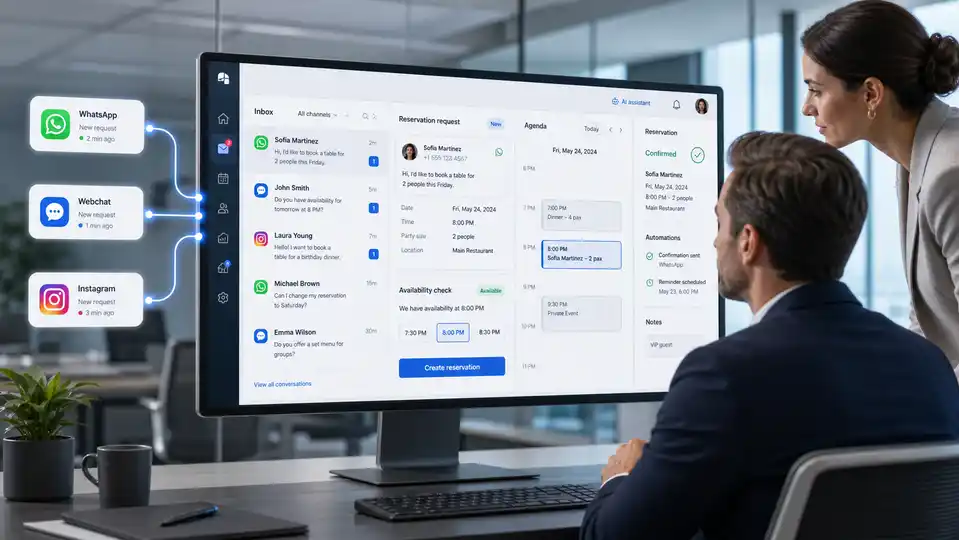
A booking comes in. Someone copies its details into a calendar, then writes a confirmation email. Each step makes sense, but repeating it manually takes time and makes changes harder to follow. When the customer reschedules, the process starts again.
To organise this work, distinguish three components: the module that manages the operation, the integration that connects a tool, and the automation that defines which action follows an event. The AI assistant can participate when you need it.
Start with the operation you want to manage
A module handles a specific process. Bookings & appointments manages availability and bookings; Quotes organises proposals; Invoice register turns documents into information you can review and export.
Choose the process first. You can use a module through its available interfaces, such as the panel, a public page or an embedded website module. You do not need to move all customer service into a chatbot to get started.
For example, a business can publish its booking module on its website and manage requests in Nexional. That first step already has a clear purpose, even without a conversational assistant.
Connect the tool that receives the information
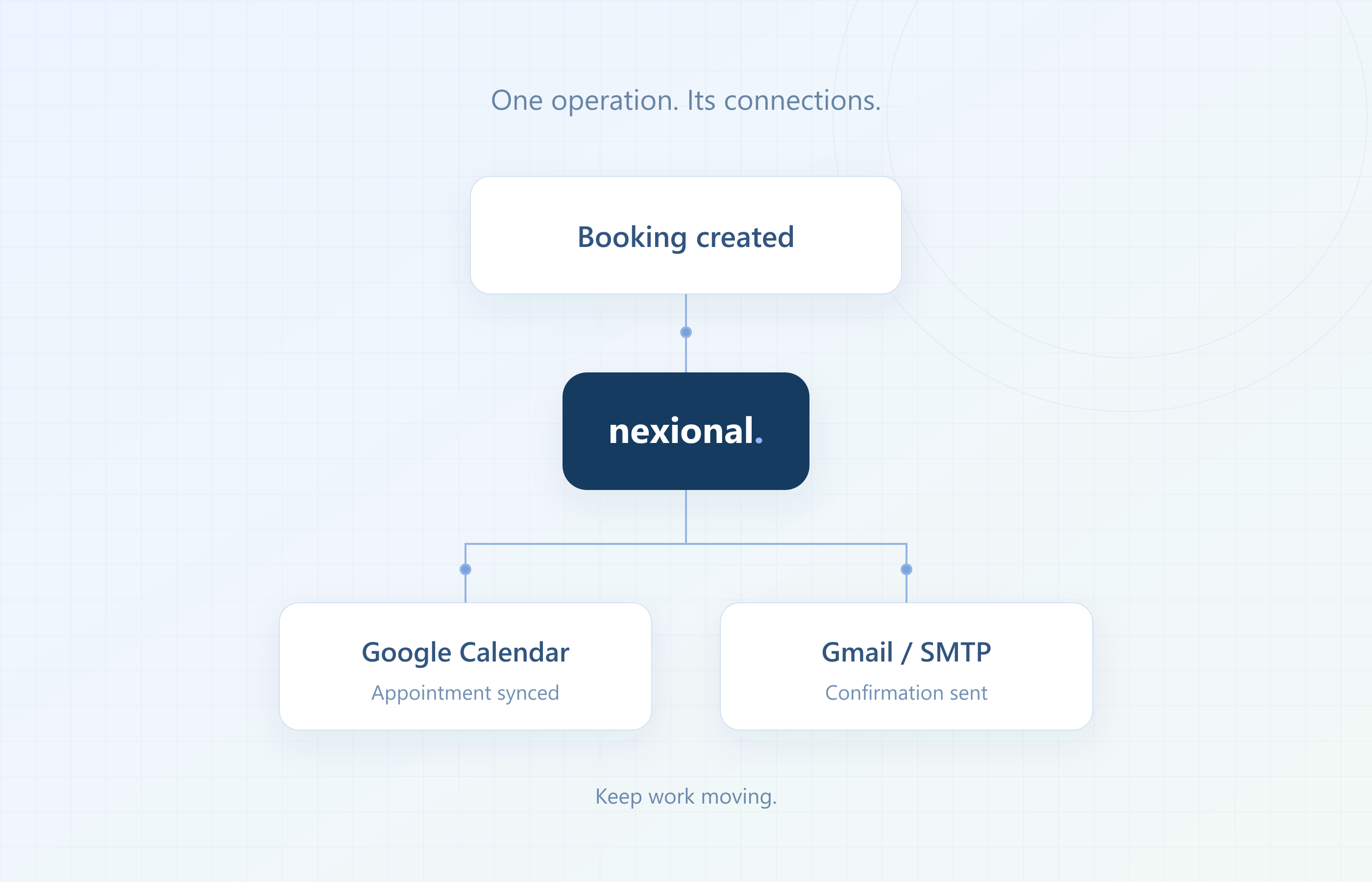
An integration prepares the connection to an account or system. To send appointments to a calendar, you need Google Calendar. To deliver confirmations, use a Gmail or SMTP email connection.
Connecting an account lets you configure supported actions. You also choose the destination and parameters: which calendar to use, which template a customer receives or which fields go into a spreadsheet.
The connection alone does not describe the entire workflow. You also need to know which event starts an action.
Define what follows each event
An automation has a starting point and an outcome. Its starting point might be booking creation, a modification or a prepared quote. Its action might synchronise an appointment, send an email or record information in Sheets.
For bookings, you can prepare separate actions:
- When a booking is created or updated, synchronise Google Calendar.
- When a booking is created, changed or cancelled, send the corresponding email notification.
- Before an appointment, send a reminder with your configured lead time.
- For operational follow-up, record events in Google Sheets.
Configure these actions around your workflow. They do not all need to be enabled together, and each uses its own connection and parameters.
The assistant can use compatible modules
The AI assistant adds a way to start operations from a conversation. If Bookings is enabled within its scope, it can check availability and help create an appointment. With Catalog access, it can explore your business options. Quotes and Help & incidents provide other compatible capabilities.
This depends on enabled modules and their configuration. Business knowledge, rules and available functions define how far the assistant can act.
The separation is useful: the assistant handles the conversation, the module manages the operation, and the integration enables the connected action. A booking started in a conversation can continue with the same calendar or email actions configured for that module.
Some outputs start with a review
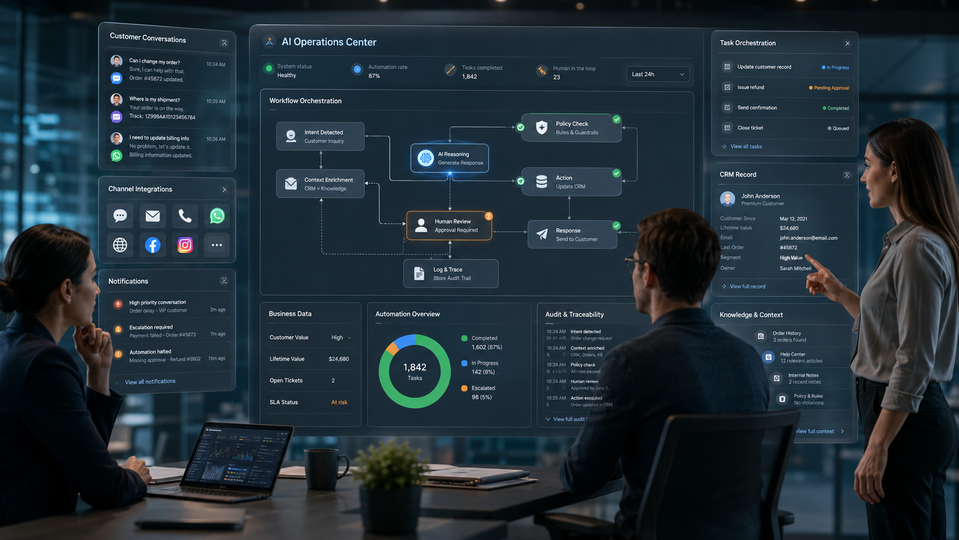
Some processes benefit from human involvement. Reviewing extracted information is part of the invoice and delivery-note workflow.
With Invoice register, check suppliers, dates and amounts before requesting an import into Google Sheets or preparing the original document archive in Drive. With Cost control, review delivery-note data and configure which event generates a record.
Automating the output helps avoid repeated transcription while keeping the checking step your process needs.
Prepare for changes and exceptions
Before enabling a workflow, test what happens when the operation changes. An appointment may be rescheduled or cancelled. An email may need another template. A webhook requires the receiving system to interpret the event correctly.
Review the whole process: starting event, required data, destination, permissions, actions and team involvement. A demonstration helps explain it, but the configuration must reflect your business rules.
Choose one workflow and expand thoughtfully
Start with a task you repeat frequently and an outcome you can verify. Then add connections and capabilities that provide a useful next step.
In the Nexional automation directory, explore each workflow, see what starts it and check its required modules and connections. To review your own case, tell us how you work and we can prepare a concrete workflow together.